How to Keep VoIP Call Quality Clear for Remote and Hybrid Sales Teams
When a remote rep sounds choppy, the fix is usually in their home, not on the platform, and this guide shows you how to tell which.

In an office, one IT person controls the network. With a remote or hybrid sales team, every rep runs their own small network, shared with family streaming and gaming. A VoIP call quality that sounds fine on Monday can break up on Wednesday afternoon when the kids get home. This guide covers what causes poor calls from home and the setup that prevents most of it. It also shows how a sales manager can catch problems before prospects do.
Every fact in this guide links to its source, and we last checked them on 16 November 2026.
Key takeaways
- Stability beats speed. A steady connection matters more than a fast one.
- Upload is the bottleneck at home, especially when others in the house are online.
- The headset fixes more complaints than any network change, including echo and background noise.
- Patterns point to causes. One rep with bad calls is a home problem; the whole team at once is a platform or carrier problem.
Why do VoIP calls sound worse for remote sales reps?
VoIP calls sound worse for remote reps because each home network is shared, unmanaged and different. In an office, the network is sized for calls and someone watches it. At home, the same connection carries a partner's video meetings, a teenager's game downloads and a smart TV, all competing with the rep's call.
Voice over IP turns speech into small packets of data sent many times a second. Those packets need to arrive steadily and in order. When they arrive late, out of order or not at all, the prospect hears gaps, robotic audio or delay. Our guide to what jitter is explains how uneven packet timing turns into choppy sound.
Sales calls feel this more than most. A discovery call with a bad line loses the rapport the rep is trying to build. Pricing conversations with a two-second delay turn into people talking over each other. Recordings full of gaps are hard to coach from afterwards.
What causes poor VoIP calls when working from home?
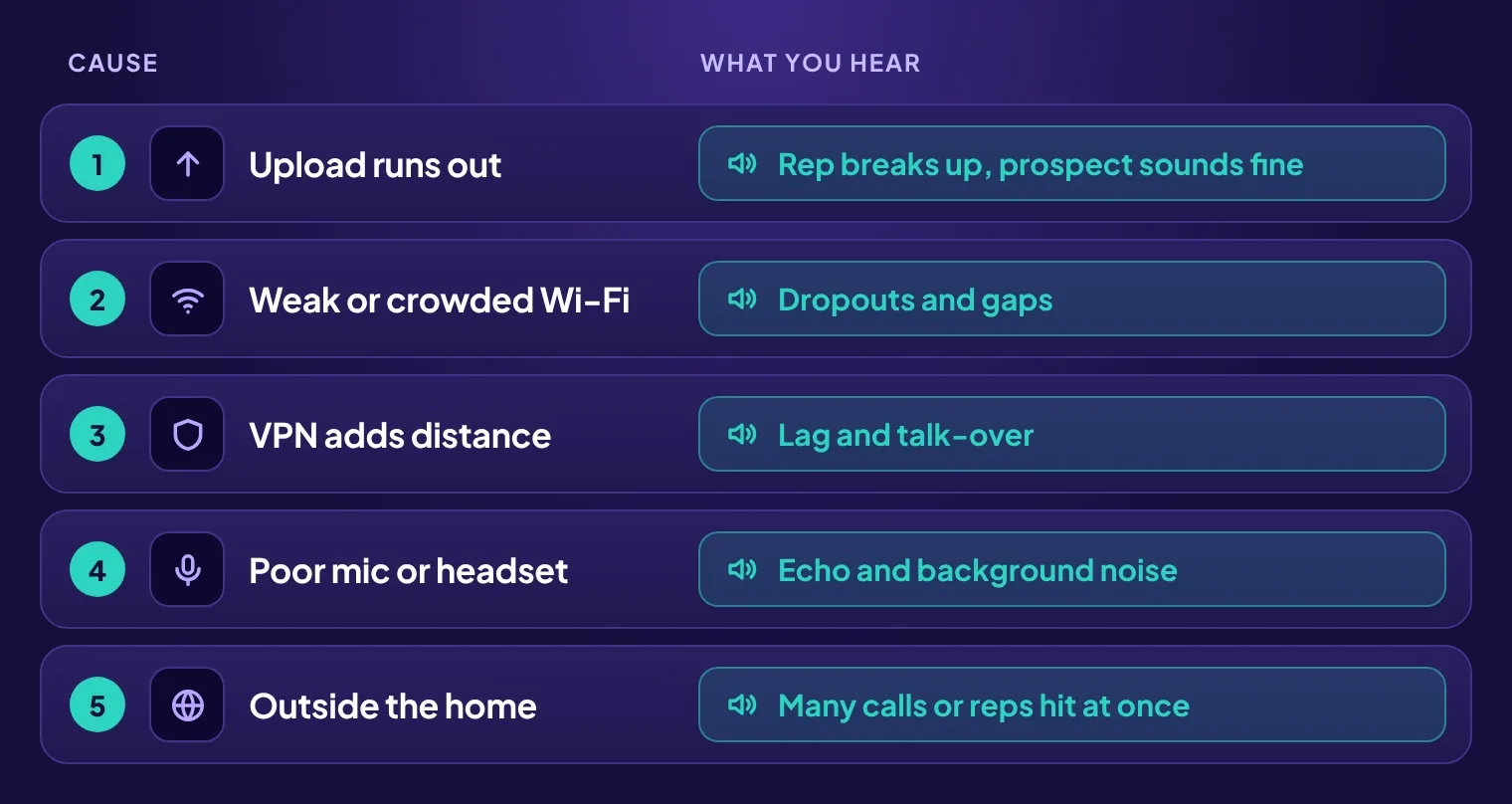
Poor VoIP calls from home usually come from one of five causes, and each one leaves a recognizable sound. Knowing the sound saves time, because it points straight to the fix.
A shared connection that runs out of upload
Home internet plans usually offer far less upload than download. A call needs a steady upload stream. When someone else starts a video call, a cloud backup or a large upload, the rep's voice is the first thing to suffer. The prospect hears the rep breaking up, while the rep hears the prospect clearly.
Wi-Fi that's weak, crowded or far away
Wi-Fi drops packets when the signal is weak, when walls sit between the desk and the router, or when neighbors' networks crowd the same channel. Reps working from a spare bedroom at the far end of the house often get the worst of it. Moving between rooms during a call can also cause a brief dropout as the device switches access points.
A VPN that adds distance
Many companies require a VPN, which sends all traffic through a company server before it reaches the internet. For voice, that can add delay and another point of failure, especially if the VPN server is far away. Callers hear it as lag and talk-over rather than broken audio.
Laptop speakers, mics and cheap headsets
Laptop microphones pick up keyboards, fans and the room itself. Built-in speakers feed the prospect's voice back into the microphone, which the prospect hears as an echo of themselves. Many "bad line" complaints are really bad audio equipment.
Problems outside the rep's home
Sometimes the problem is the rep's internet provider, the prospect's carrier or the phone platform itself. These cases tend to affect many calls or many reps at once. Our guide on VoIP call quality issues covers network-wide causes in more depth.
How can you tell what's wrong from how the call sounds?
You can usually tell what's wrong from how the call sounds, because each cause produces its own symptom. Use this table when a rep or a prospect reports a bad call:
Table 1: What the call sounds like, and what to check first
| What you hear | Likely cause | First fix |
|---|---|---|
| Choppy or robotic voice | Packet loss, often full upload | Pause uploads and video, move to a cable |
| Delay and talking over each other | High latency, often a VPN | Check whether calls run through the VPN |
| Prospect hears their own echo | Laptop speakers or an open mic | Switch to a headset |
| Background noise on the rep's side | Poor microphone | Use a noise-canceling headset mic |
| One side can't hear the other | Firewall or router blocking audio | See our one-way audio guide |
| Calls drop when the rep moves | Wi-Fi handover between access points | Stay on one connection during calls |
If calls drop completely rather than sounding poor, our guide on dropped calls and how to fix them walks through the common causes.
How do you keep VoIP call quality clear for a remote sales team?
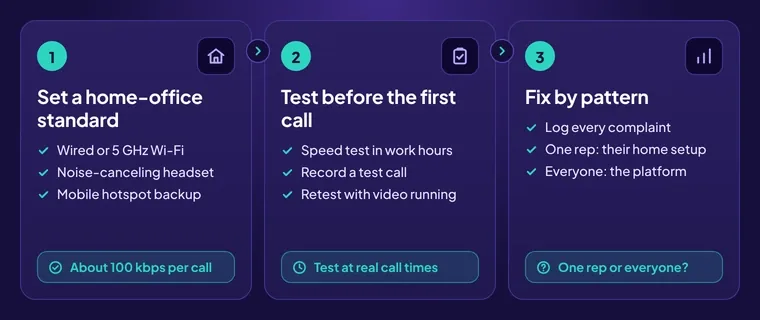
You keep VoIP calls clear for a remote sales team by setting one home-office standard and testing every rep against it. Then you fix problems by pattern instead of one by one. Follow these three steps.
Step 1: Set one home-office standard for every rep
A home-office standard is a short list of what every rep's setup must include before they take live calls. Without one, each rep makes their own choices, and you only find out what they chose when a prospect complains. This table is a sensible starting point:
Table 2: A home-office standard for remote sales calls
| Item | Standard | How to check |
|---|---|---|
| Connection | Wired, or strong 5 GHz Wi-Fi | Signal strength at the desk |
| Upload | Steady, with headroom for calls | Speed test during the working day |
| Headset | USB or Bluetooth, noise-canceling mic | Record a test call and listen back |
| Computer | Recent browser, few heavy tabs | Close video and backups in call blocks |
| Backup | Mobile hotspot for outages | Make one test call over it |
Bandwidth per call is small. HyperDial's voice page says around 100 kbps per concurrent call is plenty, and that a stable connection matters more than raw bandwidth. What matters is that the upload is steady during call blocks, not how high the speed test number is at midnight.
Headsets deserve a budget line, not a suggestion. A company-supplied headset that every rep uses also makes troubleshooting easier, because you remove one variable from every complaint.
Step 2: Test every rep's setup before their first live call
A pre-call test catches most problems in ten minutes, before they cost a deal. Run it during each rep's onboarding, again when they move house or change internet provider, and whenever a hybrid rep starts working from a new place.
The test is simple. Run a speed test during normal working hours, not late at night, and note the upload speed and ping. Then place a test call to a colleague's mobile and record it, listening for gaps, echo and background noise. Finally, start a video call in another room of the house and repeat the test call, because that's what a real afternoon looks like.
The mistake we see most happens here: testing at the wrong time of day. A connection that tests perfectly at 9 a.m. can struggle at 4 p.m. when the household comes home. Test when the rep actually makes calls.
If the company VPN is required, check whether call traffic can bypass it. Ask your IT team about split tunneling. This setting lets trusted traffic like voice go straight to the internet while other traffic stays on the VPN.
Step 3: Fix problems by pattern, not one complaint at a time
When call quality drops, the first question is who's affected. If one rep has bad calls, the cause is almost always in their home: Wi-Fi, upload, headset or VPN. When several reps in different homes have bad calls at once, look outside their homes: the platform, a carrier or a shared VPN server.
Keep a simple log of quality complaints with the rep's name, time and what the call sounded like. Patterns appear within a week: one rep every afternoon, everyone on Monday morning, or only calls to one region. Each pattern points to a different fix, which saves you from replacing equipment that was never the problem.
For team-wide problems, check your provider's status page before anything else. Our guide on business call reliability during peak hours explains how to separate network problems from staffing ones at busy times.
Does router QoS help VoIP calls Quality at home?
Router QoS can help VoIP calls at home, but only inside the home network, and only if the router supports it. Quality of service (QoS) is a router setting that gives some traffic priority over the rest. With it, voice packets go out first when the connection is busy.
Voice traffic is usually marked with a priority label called Expedited Forwarding. RFC 3246, published in March 2002, defines it for traffic that needs low loss, low latency and low jitter, with code point 46 recommended. A home router that respects that label can protect the rep's call when someone else starts a large download.
There are limits. Many home routers have basic or no QoS settings, and markings aren't guaranteed to be honored once traffic leaves the home. For most reps, a cable to the router and a rule against big uploads during call blocks do more than QoS settings.
How should hybrid reps switch between home and the office?
Hybrid reps should treat each location as a separate setup to test, because what works at home may not work in the office, and the reverse. Office networks often have stricter firewalls, busier Wi-Fi at peak times, or a VPN that's only needed at home.
A few habits keep hybrid calls clear:
- Keep one headset that travels, so the microphone and settings stay the same everywhere.
- Test the office connection once before relying on it for important calls.
- Avoid moving between rooms or floors during calls, since switching access points can drop audio.
- Use the browser on both setups, so there's no softphone version mismatch between machines.
- Keep the mobile hotspot charged as a backup for either location.
Calling from the browser also means there's nothing to install on a hot desk. Our guide to what a softphone is compares browser calling with installed apps.
How does HyperDial help remote sales teams keep calls clear?
HyperDial runs calls in the browser with a headset, uses little bandwidth, and gives managers live visibility of every rep's calls. These details come from HyperDial's voice page:
- Nothing to install: reps need a browser and a headset, with no softphone to install and no desk phone to provision.
- Light on bandwidth: around 100 kbps per concurrent call is plenty, and a stable connection matters more than raw bandwidth.
- Coaching from anywhere: managers can listen live, whisper to a rep or barge into a call, with a live floor view of who's on calls.
- Recording on by default: retention is set per campaign, announcements can be set per region, and card numbers are redacted before audio is stored.
- Platform status: a 99.9% platform uptime target on paid plans, with live status at status.hyperdial.io.
When a rep's connection fails mid-shift, HyperDial's call routing sends calls to overflow, a callback or the after-hours path rather than dropping them silently. Call analytics show answered and missed calls, so a rep whose calls keep failing stands out quickly.
One honest limit: HyperDial's voice page doesn't publish per-call audio quality scores or detailed home network guidance beyond the bandwidth figure. Use the testing routine above to check each rep's setup.
What should you do next?
Write a one-page home-office standard covering connection, headset, backup and call-block habits. Then run the ten-minute test with each rep this week, during the hours they actually make calls. Start a simple log of quality complaints, so patterns show up early. To see how browser calling works for a remote team, explore HyperDial's voice features or try HyperDial free.
Sources