What is jitter? Why calls sound choppy and how to fix it
Your internet is fast, so why do your calls still break up? Learn what jitter is and fix it in minutes.
Ever been on a call where the other person's words arrive in bursts, or they suddenly sound like a robot? That's usually jitter. You check your Wi-Fi, and the speed test says everything is fast, because jitter isn't about speed at all. So what is jitter, and why does it break up calls? It's the uneven timing of the data that carries your voice.
Internet calls send your voice as a steady stream of tiny data packets. When those packets leave on time but arrive at uneven times, the call starts to break up. Network engineers call this "packet delay variation," and the IETF, the group that sets internet standards, defines it in RFC 3393. Voice calls are especially sensitive to it, because the RTP protocol that carries most internet calls has to play each packet in order and on time.
In this guide, you'll learn:
- What jitter is, in plain words, and what it sounds like on a call
- How jitter differs from latency and packet loss
- What causes jitter, and how much is acceptable
- How to test your connection for jitter in three steps
- Eight simple ways to fix jitter on business calls
What is jitter?
Jitter is the change in delay between data packets as they travel from one device to another. When there's no jitter, every packet takes the same amount of time to arrive. With high jitter, some packets arrive early, some arrive late, and some arrive in the wrong order.
Think of it like a friend sending you one text every second. If the texts arrive one second apart, the message is easy to follow. But if three arrive at once, then nothing for five seconds, the conversation feels broken, even though every text eventually arrived.
A voice call works the same way. Your phone system cuts your voice into small packets, often one every 20 milliseconds, and sends them across the internet. The phone or app on the other end has to play them back in a smooth, even stream. Jitter breaks that rhythm.
What does jitter sound like on a call?
Jitter sounds like choppy, robotic or broken audio, where words cut in and out or arrive in bursts. These are the most common signs:
- Choppy audio: words or syllables drop out mid-sentence.
- Robotic voices: the other person sounds metallic or digital.
- Talking over each other: delays make you both start speaking at once.
- Echo or static: sound repeats or crackles in the background.
- Dropped calls: in bad cases, the call disconnects completely.
If you only hear one of these now and then, the cause may be a brief network spike. But if it happens on most calls, it's time to test your connection.
What is the difference between jitter, latency and packet loss?
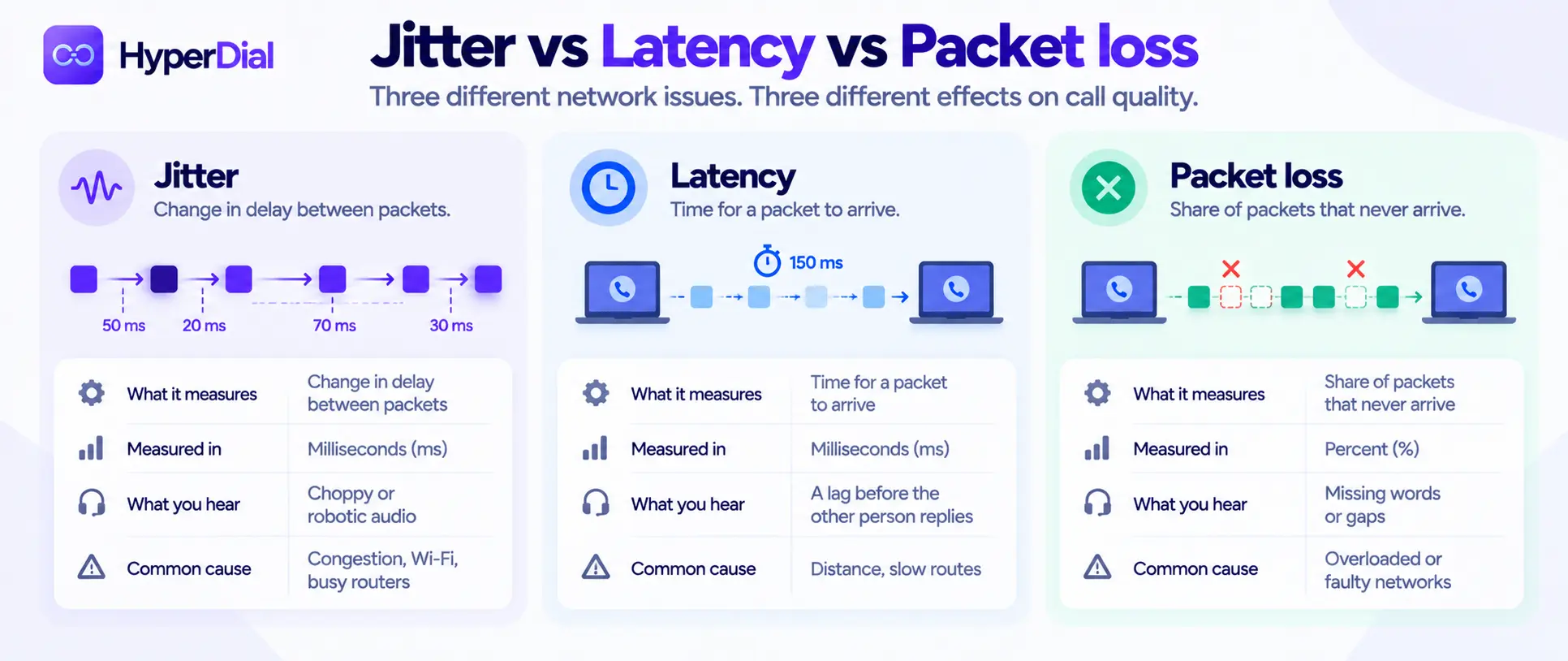
Jitter, latency and packet loss are three different ways a network can hurt call quality. Latency is how long a packet takes to arrive, jitter is how much that time changes, and packet loss is how many packets never arrive at all. The table below compares them.
Table 1: Jitter vs latency vs packet loss
| Jitter | Latency | Packet loss | |
|---|---|---|---|
| What it measures | Change in delay between packets | Time for a packet to arrive | Share of packets that never arrive |
| Measured in | Milliseconds (ms) | Milliseconds (ms) | Percent (%) |
| What you hear | Choppy or robotic audio | A lag before the other person replies | Missing words or gaps |
| Common cause | Congestion, Wi-Fi, busy routers | Distance, slow routes | Overloaded or faulty networks |
All three often show up together. A busy network that adds latency usually adds jitter too, and very high jitter can turn into packet loss when packets arrive too late to be played.
What causes jitter?
Jitter is usually caused by too much traffic on your network, or by a weak link between your device and the internet. Here are the most common causes:
- Network congestion: too many people or devices using the same connection at once.
- Weak Wi-Fi: distance from the router, thick walls or interference from other devices.
- Old or overloaded routers: home and office routers can struggle with many devices.
- Big uploads and downloads: cloud backups, video streaming and large file transfers.
- VPNs: some VPNs send call audio through a distant server, adding uneven delays.
- Route changes: your internet provider may send packets along different paths.
- Faulty hardware: damaged cables, failing network cards or outdated firmware.
Most jitter starts close to you, on your own Wi-Fi or office network. That's good news, because it's also the part you can fix yourself.
What is an acceptable level of jitter?
For clear VoIP calls, jitter should stay under about 30 milliseconds. This is a common industry rule of thumb rather than a formal standard, and the lower the number, the better the call.
The same guidance usually pairs jitter with two other limits, shown in the table below.
Table 2: Network targets for clear voice calls
| Measure | Target for clear calls | Where it comes from |
|---|---|---|
| Jitter | Under about 30 ms | Common industry rule of thumb |
| One-way latency | Under 150 ms | ITU-T G.114 recommendation |
| Packet loss | Under 1% | Common industry rule of thumb |
The 150 ms latency target comes from the ITU, the United Nations agency for telecom standards. Its G.114 recommendation covers one-way transmission time, and Cisco's voice QoS guide cites it as "no more than 150 milliseconds (ms) of end-to-end delay to maintain good voice quality."
Why does jitter matter for business calls?
Jitter matters for business calls because every choppy call costs you clarity with customers. A sales rep can't build trust if their voice keeps breaking up. Support agents can't solve a problem if the customer has to repeat everything twice.
It matters most on the lines customers rely on to reach you. If people call your toll-free number for help, they expect a clear line. A call that sounds robotic or keeps cutting out makes even a well-known business seem unreliable.
Jitter also affects things you may not notice right away:
- Call recordings: choppy audio makes recordings and transcripts harder to use.
- AI and transcription tools: broken audio leads to missed or wrong words.
- Team morale: reps get tired of repeating themselves on bad lines.
- Customer patience: callers hang up sooner when they can't hear clearly.
How do you test for jitter?
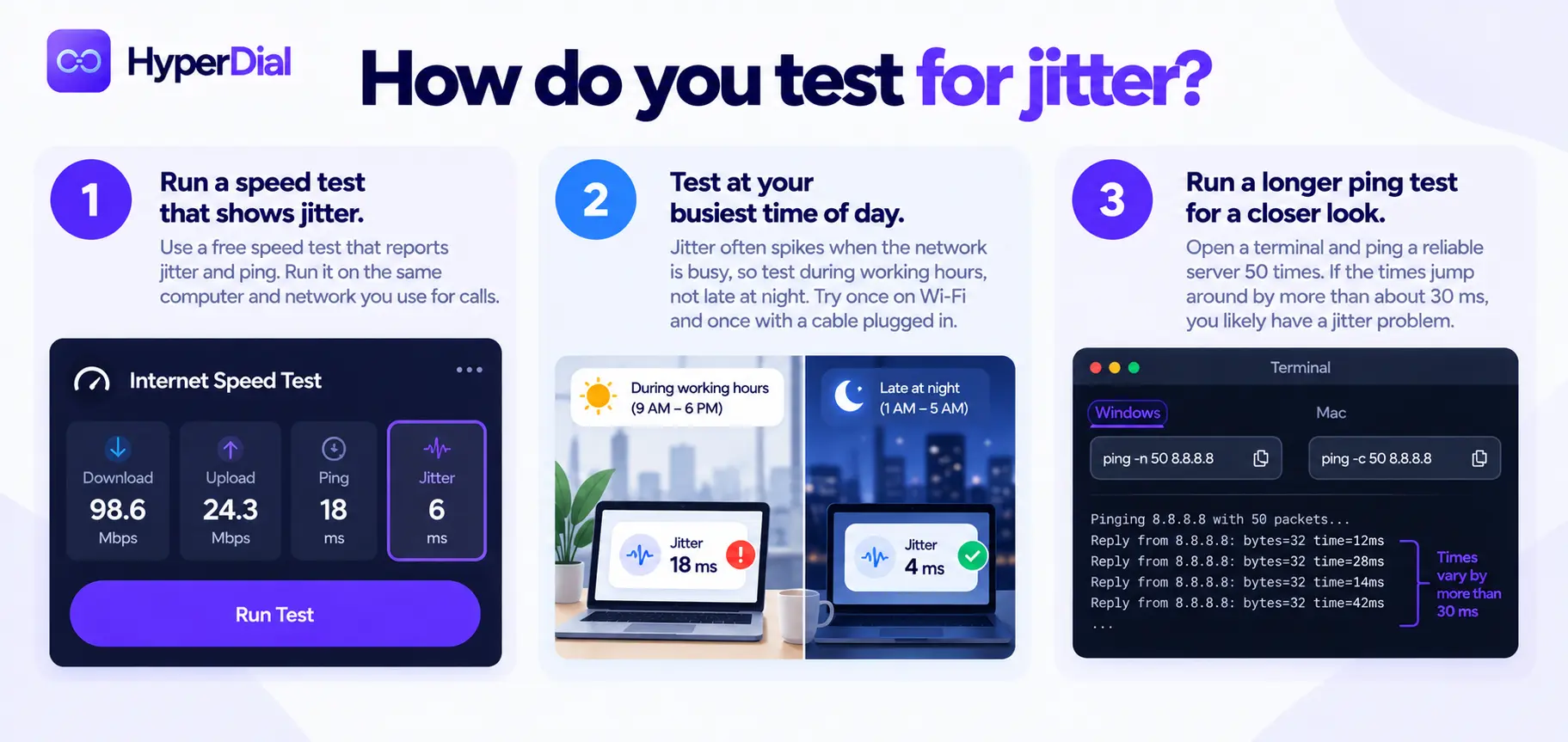
You test for jitter by measuring how much the delay changes across many packets, at the same time and on the same network you use for calls. Follow these three steps:
- Run a speed test that shows jitter. Many free speed tests report jitter and ping along with download speed. Use the same computer and network your team uses for calls.
- Test at your busiest time of day. Jitter often spikes when the network is busy, so test during working hours, not late at night. Try once on Wi-Fi and once with a cable plugged in.
- Run a longer ping test for a closer look.
Open a terminal and ping a reliable server 50 times (
ping -n 50 8.8.8.8on Windows,ping -c 50 8.8.8.8on Mac). If the times jump around by more than about 30 ms, you likely have a jitter problem.
The most common mistake happens at step 2: people test once at night, see good numbers, and assume the network is fine. But the problem only shows up at 11 a.m., when everyone in the office is online.
How do you fix jitter on VoIP calls?
You fix jitter by reducing traffic on your network, giving voice calls priority, and making the connection between your device and the router more stable. Start with these fixes, in this order:
- Use a wired connection. An Ethernet cable is far more stable than Wi-Fi, and often fixes jitter on its own.
- Move closer to the router, or use the 5 GHz band. If you must use Wi-Fi, the 5 GHz band usually has less interference than 2.4 GHz at short range.
- Turn on Quality of Service (QoS). QoS tells your router to send voice packets first. Many business networks mark voice traffic with the "Expedited Forwarding" class defined in RFC 3246.
- Limit heavy traffic during calls. Pause cloud backups, large downloads and video streaming during working hours.
- Check your VPN. A VPN that routes calls through a distant server can add jitter. Ask IT about a split tunnel that keeps call audio off the VPN.
- Update or replace your router. Install the latest firmware, and replace routers that struggle with many devices.
- Talk to your internet provider. If jitter stays high on a wired connection, the problem may be on their side, or you may need a business plan.
- Choose a phone system with clear network guidance. A good provider tells you exactly what bandwidth and network ports calls need.
What is a jitter buffer?
A jitter buffer is a small waiting area in your phone or app that collects voice packets and plays them back at an even pace. It holds packets for a short time, puts them in the right order, and smooths out small delays. Most VoIP apps have one built in.
There are two main types. A fixed jitter buffer always waits the same amount of time. An adaptive jitter buffer changes its wait time based on current network conditions. The trade-off is simple: a bigger buffer smooths more jitter, but adds more delay before you hear the other person. A buffer can hide small problems, but it can't fix a bad network.
How does HyperDial help keep calls clear?
HyperDial helps keep calls clear by asking very little of your network and telling you exactly what it needs. Calls run in the browser with a headset, so there's no extra app to install or update on each computer. Here's how it helps, based on HyperDial's voice calling page and help guides:
- Low bandwidth per call: about 100 kbps per call is plenty, and a stable connection matters more than raw speed.
- Clear network requirements: HyperDial's guide to fixing one-way audio lists the exact ports IT should open: outbound UDP 10000 to 20000 and STUN port 3478.
- VPN guidance: the same guide explains how split-tunnel VPNs can cause choppy calls, and how to test a call with the VPN off.
- A quick hotspot test: if audio is fine on a phone hotspot, the problem is your office network, not the call.
- Call details for support: each call has a call ID in Reports, so support can look into a specific bad call.
- Business numbers in six regions: business phone numbers, including toll-free numbers in some regions, with free number porting.
There's an honest limit too. No phone system can fully fix a congested office network or weak Wi-Fi. HyperDial gives you clear requirements and tools to find the cause, but the fixes above still matter. The getting started guide covers setup before your first call.
What should you do next?
Run a jitter test on your office network today, during your busiest hour. If it's above about 30 ms, plug in a cable, turn on QoS and pause heavy downloads, then test again. When your network is ready, see how HyperDial runs calls in the browser on about 100 kbps each: compare plans on the pricing page or try HyperDial free.
Sources
- IETF: RFC 3393, IP Packet Delay Variation Metric (November 2002)
- IETF: RFC 3550, RTP: A Transport Protocol for Real-Time Applications (July 2003)
- ITU-T: Recommendation G.114, One-way transmission time
- Cisco: IOS Voice, Video, and Fax Configuration Guide, Quality of Service for Voice over IP
- IETF: RFC 3246, An Expedited Forwarding PHB