VoIP call quality issues: causes and how to fix them
Tired of choppy, robotic or delayed calls? Find out what’s really causing your VoIP call quality issues, and fix them in three simple steps.

You've probably heard it. A customer's voice breaks up mid-sentence, sounds like a robot, or arrives a second late so you keep talking over each other. Every bad call costs time, patience and sometimes the sale.
The good news is that each symptom points to a small set of causes. This guide shows you what each problem sounds like, what causes it, and how to fix it in three steps.
What are the most common VoIP call quality issues?
The most common VoIP call quality issues are choppy or robotic audio, delay, echo, one-way audio and dropped calls. Each one sounds different, and that difference is your best clue. This table matches what you hear to the likely cause:
Table 1: VoIP call quality issues by symptom
| What you hear | Likely cause | Check first |
|---|---|---|
| Choppy or robotic voice | Packet loss or jitter | Wi-Fi, other traffic |
| Delay, talking over each other | High latency | VPN, distant routing |
| Echo of your own voice | Speaker or headset | Use a wired headset |
| One side can't hear | Firewall or mic permission | Ports, browser settings |
| Static or crackling | Headset or cable | Swap the headset |
| Calls cut off | Unstable connection or router | Wired test, router settings |
Write down which symptom you hear before you change anything. It points you to the right fix and saves time if you need to contact support later.
What causes poor VoIP call quality?
Poor VoIP call quality is usually caused by three network problems: packet loss, jitter and latency. Your voice travels as thousands of tiny data packets, and any of these problems breaks the stream:
- Packet loss: some packets never arrive, so words drop out or sound robotic.
- Jitter: packets arrive at uneven times, so audio sounds choppy. Our guide to what jitter is explains it in detail.
- Latency: packets arrive late, so there's a gap and people talk over each other.
Latency has a well-known limit. The ITU's G.114 recommendation on one-way transmission time gives guidance on how much delay a call can take, and conversations start to feel awkward once one-way delay passes about 150 milliseconds.
What on your side causes these problems?
These problems usually start close to you, not with your provider. Here are the most common culprits:
- Weak or crowded Wi-Fi: walls, distance and many devices cause gaps.
- Other traffic on the line: video calls, large uploads and backups compete with your voice.
- A VPN: it can send call audio through a distant server, adding delay and choppiness.
- A poor headset or laptop mic: cheap or faulty audio gear causes static, echo and muffled sound.
- Router settings: a router that doesn't prioritize voice treats calls like any other download.
Speed is rarely the issue. HyperDial's voice calling needs around 100 kbps per call, so a stable connection matters far more than a fast one.
How do you test what's causing bad call quality?
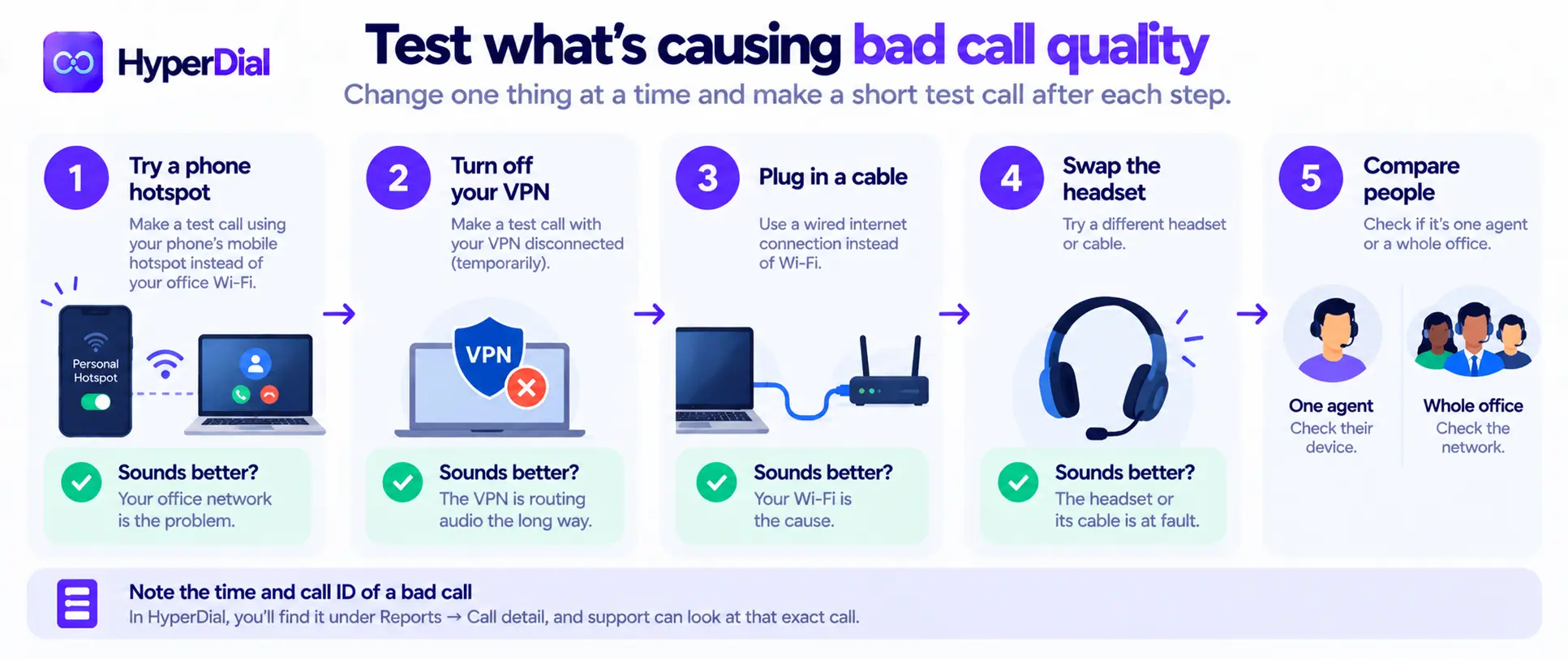
You test what's causing bad call quality by changing one thing at a time and making a short test call after each change. These checks narrow it down fast:
- Try a phone hotspot: if the call sounds clean on a hotspot, your office network is the problem.
- Turn off your VPN: if the call improves, the VPN is routing audio the long way.
- Plug in a cable: if a wired connection fixes it, your Wi-Fi is the cause.
- Swap the headset: if the sound changes, the headset or its cable is at fault.
- Compare people: if only one agent has issues, look at their device; if a whole office does, look at the network.
Note the time and the call ID of a bad call as you go. In HyperDial, you'll find it under Reports → Call detail, and support can look at that exact call.
How do you fix VoIP call quality issues?
You fix VoIP call quality issues by sorting out your device first, then your network, then your firewall. Follow these three steps:
- Fix your device and audio. Use a wired headset, select it as both mic and speaker, close apps that use the camera or bandwidth, and keep your browser or app up to date.
- Fix your network. Move to a wired connection, turn on QoS (Quality of Service) on your router so voice goes first, pause big uploads during calls, and set your VPN so call audio skips it.
- Check your firewall and escalate. Ask IT to allow your phone system's ports, then send your provider the call ID, time and symptom of any call that still sounds bad.
The most common mistake is changing everything at once. Calls get better, but nobody knows why, and the problem comes back. Make one change, test one call, then move on.
For firewalls, HyperDial needs outbound UDP 10000 to 20000 and STUN port 3478 open, as listed in its help article on fixing one-way audio.
How can you prevent VoIP call quality problems?
You prevent most VoIP call quality problems by giving voice its own space on your network and the right gear for every agent. These habits keep calls clear:
- Use wired connections for anyone on calls all day.
- Turn on QoS so voice always goes ahead of downloads.
- Give every agent a decent headset, and keep it selected as the default.
- Schedule backups and big uploads outside calling hours.
- Keep calls off distant VPN routes for remote staff.
- Test new setups with one call before a full shift.
How does HyperDial help with call quality?
HyperDial keeps your calling setup simple, so there are fewer things to go wrong. Here's what helps:
- Browser calling: agents call from a browser and a headset, with no softphone to install.
- Light on bandwidth: around 100 kbps per call.
- Clear network checks: published ports and tests in the troubleshooting section of the help center.
- A call ID for every call: so support can look at the exact call that sounded bad.
- Recordings: every call is recorded and transcribed, so you can replay a bad call and hear what went wrong.
There are honest limits too. HyperDial can't fix weak Wi-Fi, a busy office network or a router setting on your side. Those fixes are yours, and the steps above cover each one.
What should you do next?
Make one test call now on your usual setup, then one on a phone hotspot with your VPN off, and compare them. Fix the one thing that test points to, and keep the call ID of any call that still sounds bad. When you're ready, try HyperDial free or compare plans on the pricing page.
Sources