How to Fix One-Way Audio on VoIP Calls
Can you hear the customer but they can’t hear you? Find the cause of one-way audio in minutes and fix it in three simple steps, often without calling IT.
You know the feeling. The call connects, the timer starts, and you can hear the customer perfectly. They, on the other hand, keep saying "Hello? Hello?" and hang up. Or it's the other way around, and you're talking into silence.
That's one-way audio, and it's one of the most common problems on internet phone calls. The good news is that it almost always comes down to a handful of causes, and you can find yours in a few minutes. This guide walks you through it, starting with the quick fixes and ending with what to send support if nothing works.
In this guide, you'll learn:
- What one-way audio is, and which side of the call is broken
- Why it happens
- How to narrow down the cause in a few minutes
- How to fix one-way audio in three steps
- What to do if it keeps coming back
What is one-way audio?
One-way audio is a call problem where the call connects but sound only flows in one direction, so one person can hear and the other can't. The call isn't dropped, and both sides usually see it as connected. It just can't carry voice both ways.
Every call has two directions, and knowing which one is broken is your first clue:
- They can't hear you: your voice isn't leaving your computer. The usual suspects are a blocked microphone, the wrong input device, or a network that stops your audio going out.
- You can't hear them: their voice isn't reaching you. The usual suspects are the wrong output device or a network that blocks audio coming in.
Write down which direction is broken before you change anything. It saves time, and support will ask for it if you need help later.
Why does one-way audio happen?
One-way audio happens because a call is really two separate streams: one that sets the call up, and one that carries your voice. When the first stream gets through but the second is blocked, the call connects with no sound in one direction.
The setup stream usually uses SIP (Session Initiation Protocol), the standard most internet phone systems use to start and end calls (IETF RFC 3261). Your voice travels separately as RTP (Real-time Transport Protocol) packets (IETF RFC 3550). A network can let one through and quietly stop the other. If you want the bigger picture of how internet calls work, our guide to what VoIP is explains it in plain English.
These are the most common causes:
- A blocked microphone: the browser doesn't have permission to use your mic, so the call connects but sends silence.
- The wrong device: the dialer is listening to your laptop mic or playing through speakers instead of your headset.
- A headset that came back as a new device: after your computer sleeps, the headset can reappear as a second device.
- A firewall that blocks voice: it lets the call setup through but blocks the audio.
- A VPN that sends audio the long way: a split-tunnel VPN can route call audio through a distant exit point.
How do you find out what's causing one-way audio?
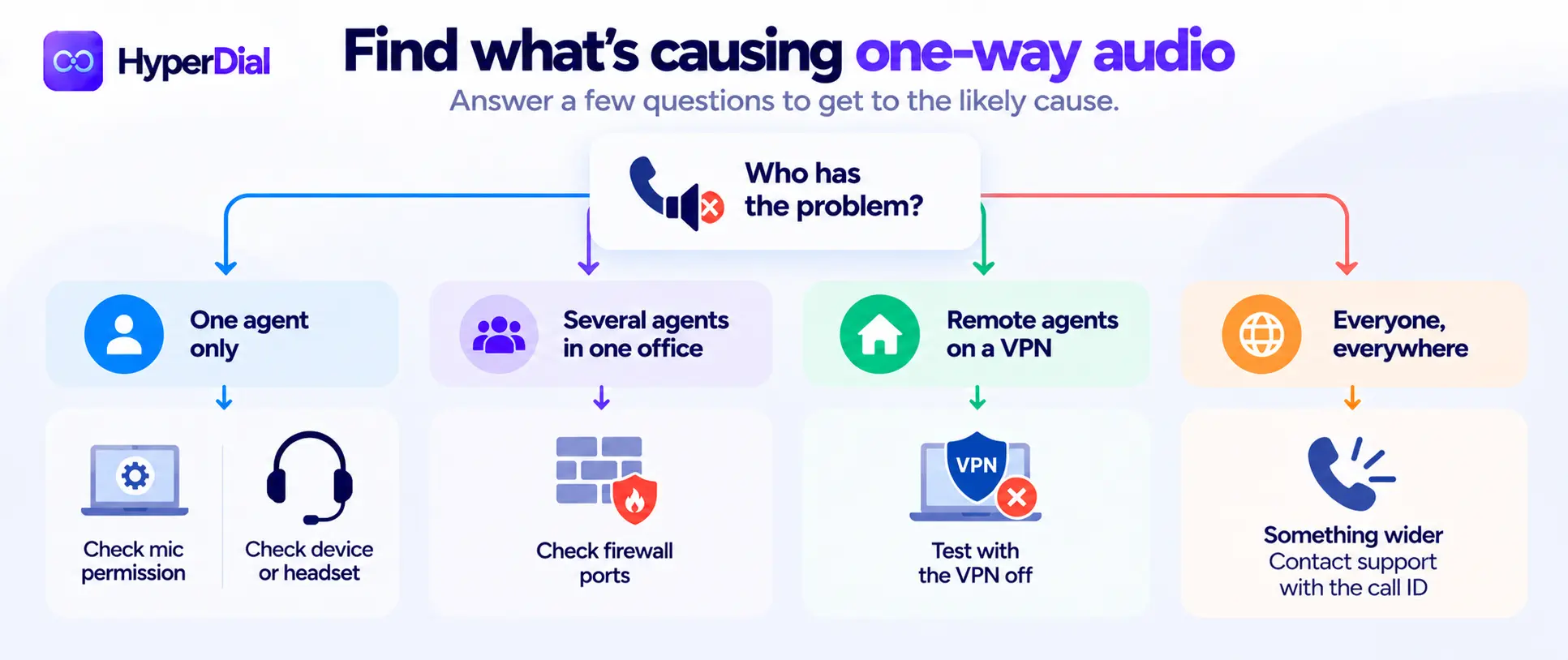
You find the cause of one-way audio by asking who is affected, which direction is broken and which network you're on. Those three answers usually point straight at the problem. This table shows how to read them:
Table 1: Who has one-way audio, and where to look first
| Who has the problem | Likely cause | Check first |
|---|---|---|
| One agent only | Their computer or headset | Mic permission, device choice |
| Several agents in one office | The office firewall | Firewall ports |
| Remote agents on a VPN | VPN routing | One call with the VPN off |
| Works on a hotspot, not at work | The office network | Ask IT about ports |
| Everyone, everywhere | Something wider | Call ID to support |
The quickest test is a phone hotspot. Make one call with your laptop on your phone's hotspot instead of the office Wi-Fi. If the audio works, your headset and computer are fine, and the office network is the likely cause.
How do you fix one-way audio?
You fix one-way audio by checking your computer first, testing a different network second, and opening the right firewall ports last. Follow these three steps in order:
- Check your microphone and headset. Allow microphone access for your phone system in the browser, select the headset you're wearing for both input and output, then unplug the headset, plug it back in and select it again.
- Test on a different network. Make one call on a phone hotspot, with your VPN turned off. If the audio works there, your computer is fine and the problem is the network.
- Ask IT to open the right ports. Have IT allow outbound UDP 10000 to 20000 and STUN port 3478 on the office firewall, then make a test call to confirm both sides can hear.
The most common mistake is skipping step 1 and going straight to IT. HyperDial's help article notes that these computer checks fix most cases. Starting there saves you a support ticket and saves IT from changing settings that were never the problem.
How do you check microphone permission in the browser?
Your browser has to allow your phone system to use the microphone, or the call connects and sends silence. In HyperDial, that means allowing microphone access for app.hyperdial.io.
In most browsers, click the icon to the left of the web address, find Microphone, and set it to Allow. Reload the page and make a test call. If you use a separate softphone app instead of a browser, check that app's microphone setting the same way.
How do you make sure the right headset is selected?
Open your dialer's audio settings and check that both the input (microphone) and output (speaker) are set to the headset you're actually wearing. A laptop mic or a monitor's speakers are easy to pick by accident.
Headsets also cause trouble after a computer goes to sleep. The headset can come back as a second device with the same name, and the dialer keeps using the old one. Unplug the headset, plug it back in, and select it again in the audio settings.
Can a VPN cause one-way audio?
Yes, a VPN is one of the most common causes on remote teams. A split-tunnel VPN can send call audio through an exit point far away from you, which can cause one-way audio and choppy calls.
Test one call with the VPN turned off before you escalate. If that fixes it, ask IT to set up the VPN so call audio doesn't take the long way. Choppy sound on its own is often jitter, which our guide explains in detail.
What firewall ports does HyperDial need?
HyperDial needs outbound UDP ports 10000 to 20000 and STUN port 3478 open on your firewall. A firewall that allows call setup but blocks the audio causes exactly the one-way audio symptom.
STUN (Session Traversal Utilities for NAT) is a standard way for your computer to find its public internet address so audio can reach it from outside your network (IETF RFC 8489). Share these port numbers with IT word for word. HyperDial's help article on fixing one-way audio lists them too.
What should you do if one-way audio keeps happening?
If one-way audio keeps happening after these steps, send support the details of one affected call so they can look at exactly what happened. Here's what to include:
- The call ID: find it in HyperDial under Reports → Call detail.
- The time of the call: as close to the minute as you can.
- The direction: say whether you couldn't hear them, or they couldn't hear you.
- What you already tried: permission, headset, hotspot and VPN tests.
That last point matters more than it seems. When support knows you've already checked the basics, they can go straight to the network side. You can also browse the troubleshooting section of the help center for related fixes.
How can you prevent one-way audio?
You prevent most one-way audio by setting things up right once, for every agent and every office. These habits keep it from coming back:
- Set microphone access to Allow for your phone system, so the browser doesn't ask again.
- Use one headset per agent and keep it selected as the default device.
- Keep the firewall rule in place when you open a new office or change routers.
- Keep call audio off distant VPN routes for remote staff.
- Test new setups with one call before an agent starts a full shift.
- Use a stable connection: HyperDial needs only about 100 kbps per call, so stability matters more than speed.
That last figure comes from HyperDial's voice calling page. If a connection is stable but calls still sound broken, look at jitter before anything else.
How does HyperDial help with one-way audio?
HyperDial keeps the setup simple, so there are fewer places for one-way audio to start. Here's what helps:
- Browser calling: agents call from a browser and a headset, with no softphone to install or desk phone to set up.
- Clear network rules: the ports to open are published, so IT knows exactly what to allow.
- A call ID for every call: support can look into the exact call that had a problem.
- Light on bandwidth: around 100 kbps per call.
- Call reports: call analytics shows total, answered and missed calls across your team.
There are honest limits too. HyperDial can't change your office firewall, your VPN or your browser settings for you. Those fixes are on your side, and the steps in this guide cover each one.
What should you do next?
Make one test call right now: check microphone access, check your headset, and note whether both sides can hear. If they can't, try a hotspot call with your VPN off and share the ports with IT. When you want a phone system with simple setup and a call ID for every call, try HyperDial free or compare plans on the pricing page.
Sources