How to make a conference call on Android: a simple step-by-step guide
Need to get three people on one call, fast? You can make a conference call on Android with the Phone app you already have: call the first person, tap "Add call," call the second person, then tap "Merge."

Conference calls are one of the easiest ways for remote and hybrid teams to stay in touch. They're also quicker than a long email chain or chat thread, where messages get misread and you wait hours for replies. One short call can settle what ten messages can't.
There's more than one way to make a conference call on Android. Your phone's built-in Phone app works for small, quick calls. Free apps like WhatsApp are handy for calls with friends and family. For work calls, a business calling app adds your business number, call recording and notes.
In this guide, you'll learn:
- How to make a conference call with your Android Phone app, step by step
- How to do it on Samsung phones and add someone who calls you
- How to mute, remove or talk privately with one person on the call
- Why the Merge button sometimes doesn't show up, and how to fix it
- When a free app or a business calling app works better
What is a conference call on Android?
A conference call on Android is one phone call with three or more people on the line at the same time. When only three people are on it, it's often called a "3-way call." You start it from your own phone, so you're the host.
You don't need a special app to do this. The Phone app on most Android phones has the buttons built in. Your mobile carrier also needs to support conference calling, and most carriers do.
Why make conference calls on your Android phone?
Making conference calls on your Android phone lets you bring people together from anywhere, without setting up a meeting. Here's why people use it:
- It's fast: you can add someone to a call in a few taps, with no meeting link to send.
- It works anywhere: all you need is a phone signal.
- Anyone can join: the people you add can use any phone, including iPhones and landlines.
- There's nothing new to learn: you use the same Phone app you use every day.
- It's quicker than messages: one call can settle what a long email chain can't.
How do you make a conference call on Android?
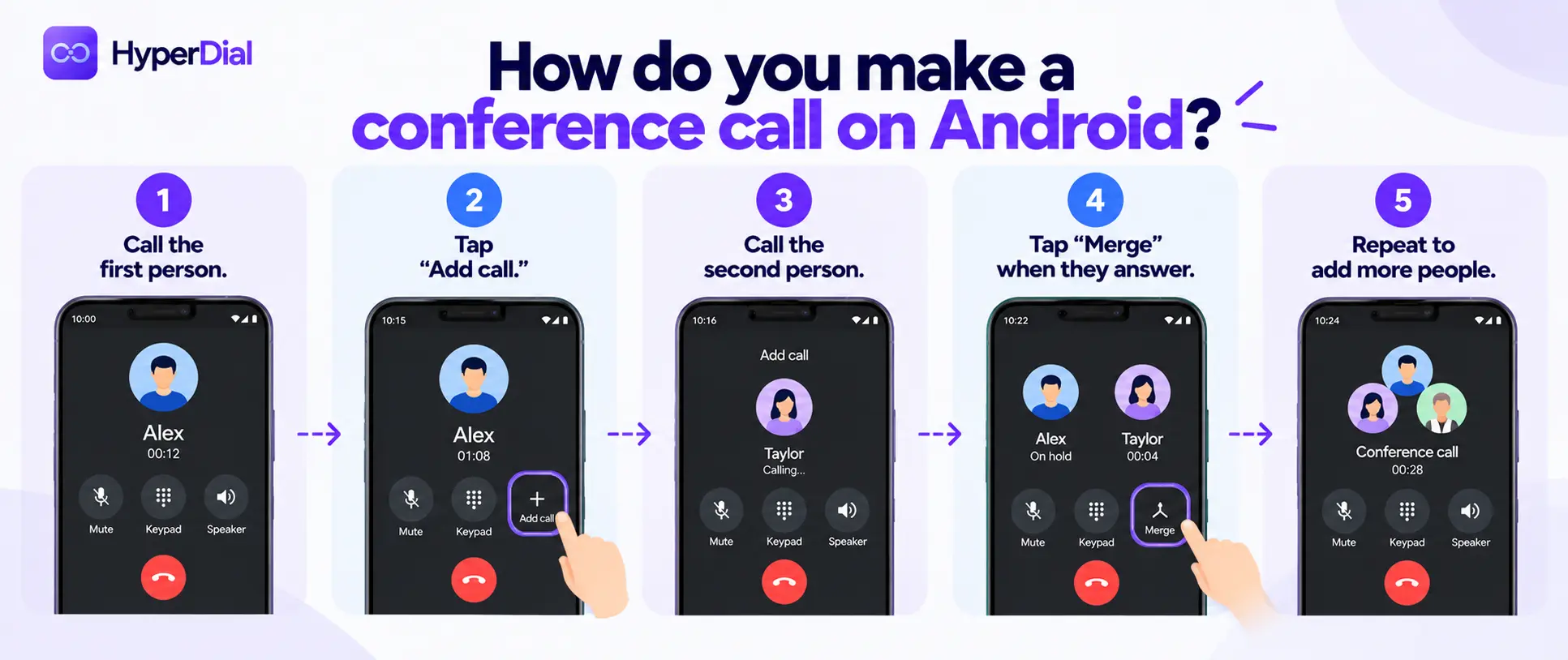
You make a conference call on Android by calling one person, adding a second call, and merging the two. Save everyone's numbers in your contacts first, so you can add them quickly. Then follow these steps:
- Call the first person. Open the Phone app and call them like you normally would.
- Tap "Add call. "Once they answer, tap Add call. The first person is put on hold.
- Call the second person. Pick them from your contacts or type their number. Do this quickly, so the first person isn't left waiting on hold.
- Tap "Merge" when they answer. Both calls join into one conference call. On some phones, the button says "Merge calls" or "Call merge."
- Repeat to add more people. Tap Add call again, call the next person, then tap Merge.
The most common mistake happens at step 4: people look for the Merge button before the second person has answered. Merge only shows up once the second call is connected. Google's Phone app help confirms that you tap "Call merge" to join current calls into one conference call.
How do you make a conference call on a Samsung phone?
On a Samsung Galaxy phone, the steps are the same. Call the first person, tap "Add call," call the second person, then tap "Merge." The buttons may look a little different or sit in a different spot, because Samsung uses its own Phone app. If you don't see Add call, tap the three-dot menu during the call.
How do you add someone who calls you during a call?
You can add an incoming caller to your current call. When the second call comes in, answer it and choose to put the first call on hold. Then tap "Merge" to bring everyone together. Call waiting must be turned on for this to work.
How do you manage a conference call on Android?
You manage a conference call on Android from the call screen, where you can mute yourself, talk to one person privately, or remove someone. The exact buttons depend on your phone and carrier. Here's what you can usually do:
- Mute yourself: tap Mute when you're not talking, to cut background noise.
- Talk to one person privately: tap "Manage" or the people icon, then pick a person to split them off. Tap Merge to bring them back.
- Remove one person: in the same list, tap the end-call icon next to their name.
- End the call: tap End call. On a regular conference call, this hangs up everyone, so warn people first.
Some carriers only show Mute, Speaker and End during a conference call. If you don't see the other options, your carrier doesn't support them.
How many people can join a conference call on Android?
The number of people who can join a conference call on Android is set by your mobile carrier, not by Android. Most carriers allow around six people in total, including you. Check with your carrier for your exact limit.
If you need more people than that, use an app instead. Apps run over the internet, so they aren't tied to your carrier's limit. For example, WhatsApp group voice calls allow up to 32 people.
Why is the merge button missing on my Android phone?
The merge button is usually missing because the second call hasn't connected yet, or because your phone or carrier setting blocks it. Try these fixes:
- Wait for the second person to answer: Merge only shows up once both calls are live.
- Turn on call waiting: go to your Phone app settings and switch on call waiting.
- Check your carrier: some plans, especially prepaid ones, don't include conference calling.
- Turn off Wi-Fi calling for a moment: some carriers don't support merging over Wi-Fi calling.
- Update your Phone app: an old version can hide newer buttons.
- Restart your phone: a quick restart fixes many small glitches.
The table below compares the built-in Phone app with a business calling app.
Table 1: Built-in Android conference calls vs a business calling app
| Built-in Phone app | Business calling app | |
|---|---|---|
| Number people see | Your personal number | Your business number |
| Group size | Set by your carrier | Set by the app |
| Call recording | Not built in on most phones | Usually built in |
| Notes and transcripts | None | Often included |
| Who pays | You pay for each call you place | Billed by the app |
For a quick call with family or two friends, the built-in Phone app is all you need. Calls with customers or a sales team need more control, which a business calling app gives you.
How do you make business conference calls from an Android phone?
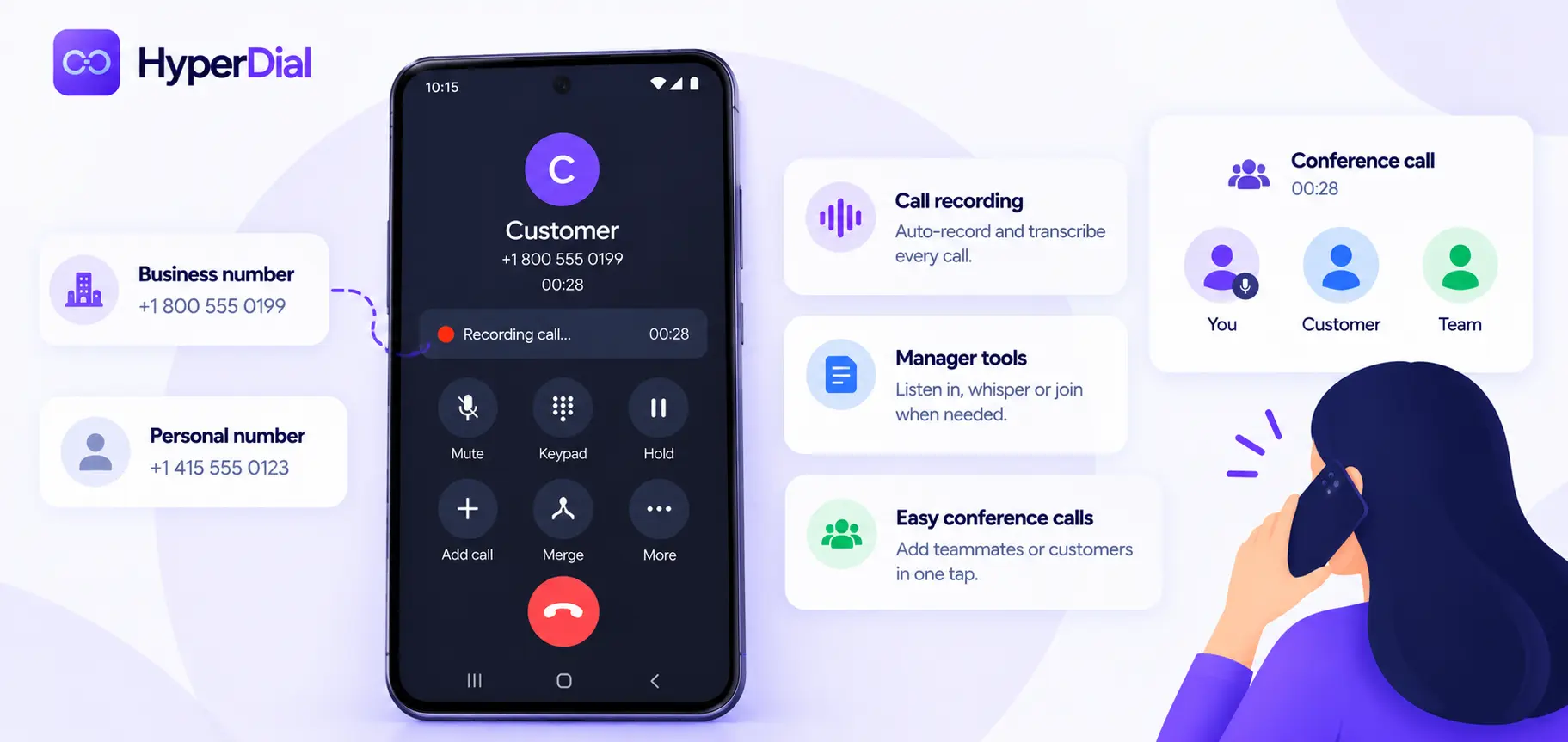
Business conference calls work best from a business calling app, so customers see your business number and every call is saved. You install the app on your Android phone, and calls run over your data or Wi-Fi.
HyperDial's voice calling lets your business number ring in the HyperDial app, right next to your personal number. Every call is recorded and transcribed, so no one has to take notes. When a call needs help, a manager can listen in, whisper tips to the rep, or join the call, as shown on HyperDial's manager tools page. Calls passed to a teammate go with the full context, so the customer doesn't repeat themselves.
If you don't have a business number yet, get local phone numbers now and start dialing today
How do you run a better conference call?
A better conference call starts with a little planning, so people know why they're there. Follow these tips:
- Tell people the time and topic first: send a short message before you call.
- Find a quiet place: background noise is louder for everyone else.
- Use a headset: it cuts echo and keeps your hands free.
- Introduce everyone: say each person's name when they join.
- Mute when you're not talking: it keeps the line clear.
- Send a short summary after: list what was decided and who does what.
HyperDial's conversation intelligence turns each recorded call into a transcript and summary, so the follow-up is ready when you hang up.
What should you do next?
Try a quick 3-way call today: call a friend, tap "Add call," call a second friend, and tap "Merge." If you make calls for work, move them to a business calling app so customers see your business number and every call is saved. To get started, try HyperDial free and take business calls on your Android phone.
Sources